Best Keyboards for Typing and Work 2027
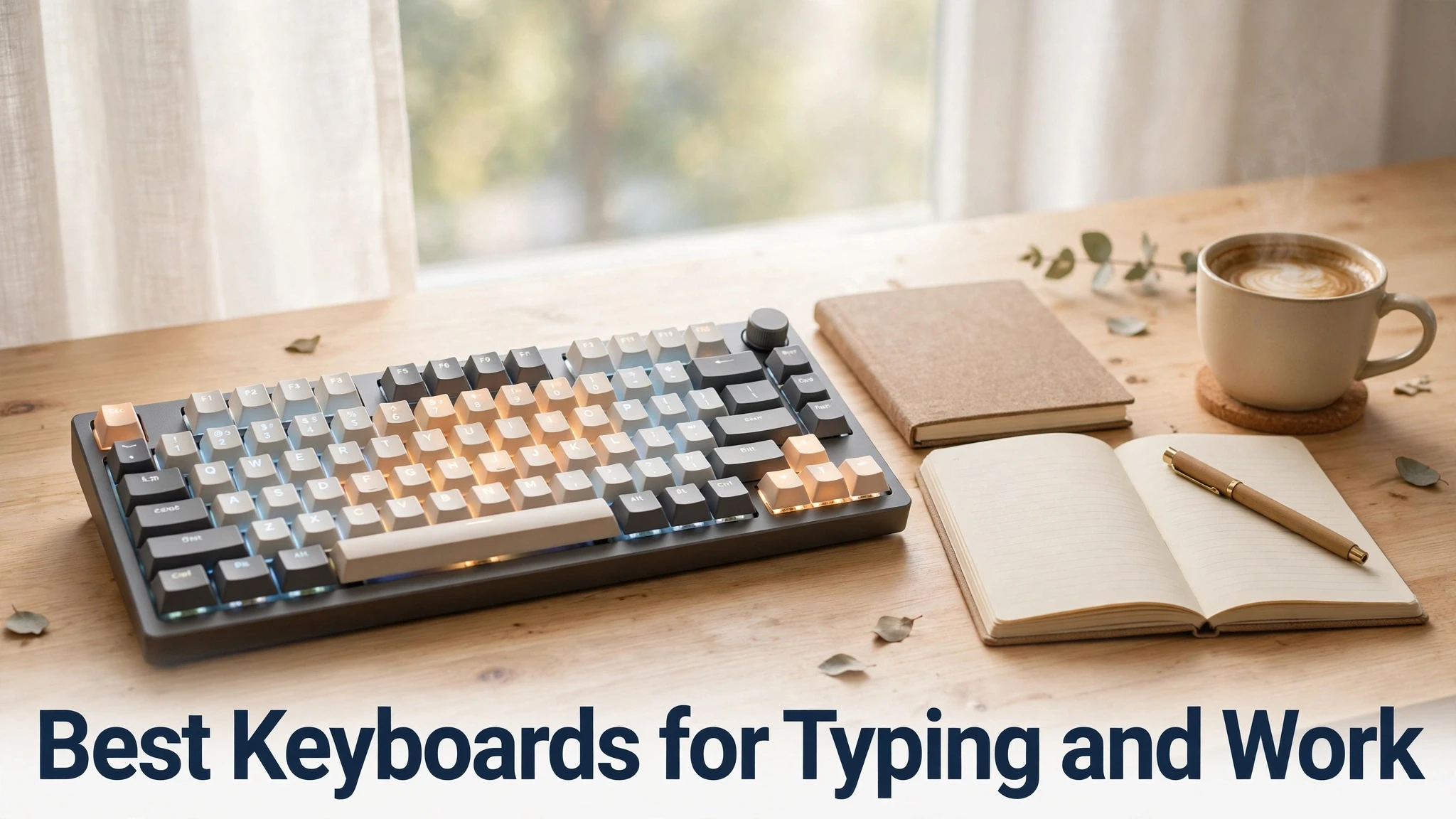
In this post
- Mechanical Versus Membrane: Feel, Sound and Durability
- Switches Explained: Linear, Tactile and Clicky
- Layouts, Size and the Number Pad Question
- Ergonomics: Posture, Wrist Pain and Split Designs
- Wired, Wireless and Battery Life
- Noise, Office Etiquette and Shared Spaces
- Keycaps, Customisation and Long-Term Comfort
- Keyboards for Programmers, Writers and Data Entry Compared
- My Take:
You touch your keyboard more than almost any other tool at work. A good keyboard makes long writing, coding, data entry, and email feel smooth and comfortable. A poor keyboard causes typos, finger fatigue, wrist pain, and daily frustration that adds up over months. In 2027, the choice is wider than ever: quiet membrane keyboards, tactile mechanical keyboards, compact layouts, split ergonomic designs, and wireless models with long battery life. This guide explains the differences in plain language, so you can choose by your hands, your work, your noise tolerance, and your desk, rather than by looks alone.
Start by thinking about your main task. A writer needs comfortable keys for thousands of words a day. A programmer needs reliable keys, useful shortcuts, and a layout that does not hide important symbols. A data entry worker needs a number pad and consistent key feel. An office worker in a shared space needs quiet keys. A person with wrist pain needs an ergonomic shape and adjustable height. No single keyboard is best for all of these, but a clear priority list will narrow the choice quickly.
Mechanical Versus Membrane: Feel, Sound and Durability
Membrane keyboards use a rubber layer under the keys. When you press a key, the membrane collapses and registers the press. They are usually quiet, slim, affordable, and spill-resistant to a degree. They are common in offices and with laptops. Their downside is feel: after long use, membrane keys can feel mushy or inconsistent, and individual keys are harder to replace or repair. For light to moderate typing, a good membrane keyboard is perfectly fine, especially if quiet operation matters most.
Mechanical keyboards use an individual switch under each key. Each switch has a spring and a stem that gives a distinct feel and sound. Mechanical keyboards are often more durable, more consistent over years, and more customisable: you can often change keycaps or switches. They are popular with writers and programmers who type heavily, because a good switch reduces fatigue and makes typing rhythm clearer. Their downside is usually price, size, and noise, although quiet switch options exist. If you type for many hours daily, a mechanical keyboard is often worth trying, even if you start with an affordable model.
There is also a middle ground: scissor-switch keyboards, common on laptops and slim desktop keyboards, offer a short, stable key travel and a crisp feel in a thin body. They suit people who like laptop keyboards and want a similar feel on a desktop. Optical switches, which use light to register presses, are another mechanical-style option with fast response and durability, but they matter more for gaming than for ordinary work. For typing and office work, focus on feel, noise, and comfort, not on exotic switch technology.
Switches Explained: Linear, Tactile and Clicky
Mechanical switches are usually described as linear, tactile, or clicky. Linear switches press smoothly from top to bottom without a bump. They feel fast and quiet, and they suit people who like a smooth, light press. Tactile switches give a small bump in the middle of the press, so you can feel when the key registers without pressing all the way down. Many writers and programmers prefer tactile switches, because the bump gives feedback and can reduce bottoming out, which is pressing keys hard against the base.
Clicky switches add a sound to the tactile bump, giving a classic typewriter-like click. They feel satisfying to many typists, but they are loud and can disturb colleagues, family, or microphone recordings. In a shared office or during video calls, clicky switches are often a poor choice, even if you love them at home. Quiet linear or quiet tactile switches offer much of the mechanical feel with far less noise. If you are unsure, choose a quiet tactile switch as a safe starting point, or try a switch tester, which is a small board with several switch types to press before buying.
Switch weight, measured in grams of force, also matters. Light switches, around 45 grams, feel easy and fast but may cause accidental presses for heavy-handed typists. Medium switches, around 55 to 65 grams, suit most people. Heavy switches, above 70 grams, feel firm and deliberate but can tire fingers during very long sessions. Key travel, the distance a key moves, affects comfort too: longer travel often feels more satisfying for touch typists, while shorter travel feels faster for laptop-style typists. There is no universally best weight; your hands and typing style decide.
Layouts, Size and the Number Pad Question
Keyboard size affects desk space, mouse position, and comfort. A full-size keyboard includes letters, numbers, function keys, navigation keys, and a number pad. It suits data entry, accounting, and anyone who uses numbers often. Its downside is width: it pushes the mouse further to the right, which can strain the shoulder, especially for right-handed users. A tenkeyless keyboard, often called TKL, removes the number pad but keeps function and navigation keys. It gives more mouse room while keeping a familiar layout, and it suits most writers and programmers.
Compact keyboards go further. A 75 percent keyboard keeps most keys in a tighter layout, while a 65 percent or 60 percent keyboard removes function keys, navigation keys, or both, relying on key combinations for those functions. Compact keyboards save desk space and keep hands closer together, which some people find more comfortable. They can frustrate others, especially if you often use arrow keys, function keys, or shortcuts that are now hidden behind layers. If you are new to compact layouts, a 75 percent or TKL model is a safer step than a tiny 60 percent model.
Layout also includes language and key arrangement. Most international users use a US ANSI layout or a local ISO layout, which differ in the shape of the Enter key and the placement of a few symbols. Check which layout your software and muscle memory expect, especially for programming symbols, because a wrong layout causes daily annoyance. Also check key labelling: backlit keys help in dim rooms, but very dim or novelty legends can be hard to read. For touch typists, labelling matters less than feel, but for learners and shared computers, clear legends help.
Ergonomics: Posture, Wrist Pain and Split Designs
Ergonomics is not only about a curved keyboard; it is about your whole posture. Your elbows should be near a right angle, your wrists should stay fairly straight, and your shoulders should stay relaxed. A keyboard that is too high, too low, or too far away forces wrists to bend, which can cause pain over time. Adjustable feet, a wrist rest, and a chair and desk at the right height often matter more than an expensive ergonomic keyboard alone. If you already have wrist pain, numbness, or tingling, seek medical advice rather than only buying new equipment.
Split keyboards separate the left and right halves, allowing hands to sit at shoulder width with straighter wrists. Some split keyboards are fixed in a gentle curve, while others are fully separate halves you can angle and position. They can help people with shoulder or wrist discomfort, but they take time to learn, and they may slow you down for the first week or two. Tenting, which raises the inner edges of the halves, can further straighten wrists, but it also takes adjustment. Try a split design only if you have a clear comfort problem or you are willing to practise through the learning period.
Wrist rests help some people and hurt others. A soft, low wrist rest can support the palms during pauses, but resting wrists heavily on a hard edge while typing can increase pressure. The best habit is to keep wrists floating slightly while typing and to rest palms only during breaks. A keyboard with a gentle slope, rather than a steep angle, is often more comfortable for long sessions. Take regular breaks, stretch fingers and wrists, and vary tasks. No keyboard, however ergonomic, replaces movement and rest.
Wired, Wireless and Battery Life
Wired keyboards are simple and reliable: plug in and type, with no batteries or pairing issues. They suit fixed desks and people who dislike charging. Wireless keyboards offer a cleaner desk and flexibility to move between devices, which suits hot-desking, living-room work, and multi-device setups. Modern wireless keyboards using Bluetooth or a USB receiver are reliable for typing, with no noticeable delay for ordinary work. Gamers may prefer wired or high-speed wireless, but for writing and office work, standard wireless is fine.
Battery life varies widely. Some wireless keyboards last months on a charge, others last weeks, depending on backlighting. Bright backlighting drains battery quickly, so if you want long battery life, choose a keyboard with adjustable or switchable backlighting, or turn it off during the day. Check charging method: USB-C charging is convenient and common in 2027, while older micro-USB or disposable batteries are less convenient. A keyboard that works while charging is useful, because a dead battery in the middle of work is frustrating.
Multi-device pairing is a useful feature for people who switch between a computer, tablet, and phone. A keyboard that pairs with three devices and switches with one keypress can save desk space and time. Check compatibility with your operating system, especially for function keys, media controls, and special shortcuts, because some keyboards are optimised for one system and behave differently on another. Also check whether the keyboard needs software for customisation, and whether that software works on your system, because some customisation tools are Windows-only.
Noise, Office Etiquette and Shared Spaces
Noise is a social feature, not just a personal preference. In an open office, library, or shared home, a loud keyboard can disturb others and make video calls unpleasant. Membrane and quiet mechanical keyboards are usually the safest choices for shared spaces. If you love clicky switches, consider using them at home only, or in a private office, and keeping a quiet keyboard for meetings and shared work. A simple test is to record yourself typing during a video call: if the keyboard dominates the audio, it is too loud for that setting.
Key sound also depends on desk surface, keycaps, and typing force. A hard desk amplifies sound, while a desk mat can soften it. Typing lightly, without bottoming out every key, reduces noise on any keyboard. Some keyboards include sound-dampening foam or silicone pads, which help. If you share a space, ask colleagues honestly whether your keyboard bothers them, and be willing to switch. Good etiquette protects your reputation more than a satisfying click protects your typing joy.
For video calls, a headset microphone close to your mouth picks up less keyboard noise than a laptop microphone. Push-to-talk, mute when not speaking, and a quiet keyboard together make calls smoother. If you type notes during calls, warn participants that you may be typing, and consider a quiet keyboard specifically for meetings. These small habits show professionalism and make collaboration easier.
Keycaps, Customisation and Long-Term Comfort
Keycaps, the plastic tops of keys, affect feel, sound, and readability more than many buyers expect. Standard ABS keycaps are common and affordable, but they can become shiny and slippery with heavy use. PBT keycaps are usually more durable and resistant to shine, and they often feel slightly textured, which many typists prefer. Keycap shape, or profile, also matters: taller, sculpted profiles can guide fingers, while lower, uniform profiles feel flatter and faster. For most work keyboards, a comfortable, readable keycap set with clear legends matters more than novelty colours, although a pleasant colour scheme can make a desk more enjoyable to use.
Customisation can be a hobby in itself, with swappable switches, keycaps, cables, and cases. For work, a little customisation is useful: changing a few loud switches for quiet ones, adding a wrist rest, or replacing worn keycaps can extend a keyboard’s life. Too much customisation can become a distraction, with endless shopping replacing typing practice. A good rule is to customise to solve a real problem, such as noise, discomfort, or a missing layout feature, rather than chasing novelty. Keep original parts, so you can restore the keyboard if a change does not help, and avoid modifications that void warranty unless you accept that risk.
Keyboards for Programmers, Writers and Data Entry Compared
Different work needs different keyboard strengths. Programmers often need easy access to symbols, brackets, and function keys, plus a layout that does not require awkward combinations for common shortcuts. A tenkeyless or 75 percent keyboard with clear symbol legends and programmable layers can help, because it keeps important keys within reach while saving desk space. Writers need comfortable, consistent keys for long prose, with minimal noise and fatigue, and they often benefit from tactile switches that give clear feedback without loud clicks. Data entry workers need a reliable number pad, consistent key feel, and keys that register accurately during fast, repetitive input.
If you do mixed work, prioritise the task you do most, then check that the second task is still comfortable. For example, a writer who occasionally enters numbers can use the top number row or a separate small number pad, while a data entry worker who occasionally writes emails still needs comfortable letter keys. A separate number pad is a flexible solution: it gives data entry comfort without forcing a wide keyboard on everyone, and it can be placed on the left for left-handed mouse users or on the right for right-handed users. Matching the keyboard to your dominant task, with a flexible add-on for secondary tasks, usually beats a single keyboard that is mediocre at everything.
My Take:
My view is that most people should choose a quiet, comfortable keyboard and spend their money on fit, not on fashion. A keyboard that matches your hands, your noise environment, and your main task will serve you every day, while a beautiful keyboard with the wrong switches or layout will annoy you every day. If I had to recommend a safe starting point for most office workers and writers, it would be a tenkeyless or 75 percent keyboard with quiet tactile switches, clear legends, adjustable height, and a sensible price. You can always explore louder, heavier, or more exotic switches later, once you know what your hands prefer.
I also think ergonomics deserves more attention than RGB lighting. A keyboard with a gentle slope, a comfortable wrist position, and a layout that keeps your mouse close will protect your shoulders and wrists far more than colourful lights will impress anyone. Take breaks, keep wrists straight, and do not ignore pain. If a keyboard causes discomfort after a fair trial of a week or two, change it. Hands are not standardised, and neither are keyboards. The best keyboard is the one you forget while you work, because it lets your ideas flow without fighting your fingers.
Finally, I would advise trying before buying when possible. Press the keys, type a paragraph, listen to the sound, and check the size on your desk. Online reviews help, but they cannot feel your hands. A switch tester, a shop demo, or a friend’s keyboard can prevent an expensive mistake. Typing is a daily craft, and a good tool respects that craft. Choose comfort, quiet, and reliability first, and let looks be the bonus, not the reason.
I think the keyboard market also teaches a broader lesson about tools: small daily frictions matter more than rare peak performance. A keyboard that saves you from typos, wrist strain, or noise complaints every day is worth more than a keyboard that looks impressive in a photo but tires your hands by afternoon. When I evaluate a keyboard, I therefore ask how it feels after two hours, not after two minutes. Two minutes reveals novelty; two hours reveals comfort, consistency, and noise. If possible, borrow a keyboard for a week, type your real work on it, and notice your hands at the end of each day. That trial tells you more than any specification sheet.
Another point is the value of a consistent layout across devices. If you switch between a laptop, a desktop, and a tablet, using similar layouts reduces errors and mental effort. A compact desktop keyboard that hides keys you use daily on a laptop can cause constant fumbling. Before buying a compact model, list the keys and shortcuts you use most, such as function keys for debugging, arrow keys for spreadsheets, or a number pad for data entry, and confirm they are easy to reach. A keyboard that forces you to relearn basic actions may save desk space but cost time every day. Desk space is valuable, but so is muscle memory, and muscle memory is harder to rebuild.
I also want to highlight the social dimension of keyboard choice in shared workplaces. A quiet keyboard is a form of respect for colleagues, just as a tidy desk and muted notifications are. In remote work, a quiet keyboard respects meeting participants and improves your own audio quality. That does not mean you must give up mechanical feel; quiet switches, desk mats, and lighter typing can preserve much of the pleasure without the noise. If you truly love loud switches, enjoy them at home, in a private room, or with headphones, and keep a quiet option for shared settings. Good tools should help you work with others, not make others work around you.
Finally, I would advise against treating a keyboard as a one-time purchase to be agonised over forever. Hands change, work changes, and preferences evolve. Buy a good, sensible keyboard now, use it daily, and note what you would change next time: lighter switches, a different size, a split layout, or better backlighting. That note becomes your next buying guide, grounded in real experience rather than reviews. A keyboard is a partner in your daily craft, and like any partnership, it improves when you pay attention to what actually helps. Choose comfort, clarity, and quiet reliability, and your hands will thank you for years.
One more practical habit: clean your keyboard regularly and gently. Dust, crumbs, and spills affect feel and can damage switches over time. Turn the keyboard upside down and shake it lightly, use compressed air carefully, and wipe keycaps with a slightly damp cloth, following the maker’s guidance. Do not pour liquid into switches or use harsh cleaners. A clean keyboard feels better, lasts longer, and looks professional on video calls. Small maintenance, like small ergonomic habits, compounds over months into a noticeably better daily experience.
I also think keyboard buyers should consider software and shortcuts, not only hardware. A good keyboard with poorly configured shortcuts still wastes time, while a modest keyboard with well-learned shortcuts can feel fast and powerful. Learn the shortcuts for your most-used applications, such as copy, paste, undo, switching windows, and formatting, and practise them until they are automatic. Many keyboards offer programmable keys or layers, which can place common actions within easy reach, but only if you actually configure and learn them. Spend an hour setting up shortcuts for your real work, and you may gain more productivity than from any switch change.
Another often-missed point is the relationship between keyboard, mouse, and monitor height. A comfortable keyboard on a desk that is too high, with a monitor that is too low, still causes strain. Check your whole setup: feet flat, elbows near a right angle, monitor top near eye level, and mouse close to the keyboard. A keyboard tray, a monitor stand, or a chair adjustment can improve comfort more than a new keyboard alone. If you work from home, invest in the whole workstation gradually, starting with the item that causes the most discomfort, rather than buying a premium keyboard while sitting on an unsuitable chair at a wrong-height desk.
Finally, I would encourage a trial mindset. Keyboards are personal, and preferences change with experience. What feels perfect in a shop for five minutes may feel tiring after a week, and what feels strange on day one may feel natural after a week of adjustment. Give a new keyboard at least a week of real work before judging it, unless it causes pain, in which case stop and seek advice. Keep notes on what you like and dislike, and use those notes for your next purchase. Over time, you will develop a clear sense of your ideal switch weight, layout, and size, and buying will become easier, cheaper, and more satisfying.
Frequently Asked Questions
What is the best keyboard for typing all day?
A comfortable keyboard with tactile or quiet tactile switches, a layout you know, and a height that keeps wrists straight is usually best. Try switches before buying if possible.
Are mechanical keyboards better than membrane keyboards?
Mechanical keyboards often offer better durability, consistency, and customisation, while membrane keyboards are usually quieter, slimmer, and cheaper. The best choice depends on your typing volume and noise environment.
What are the quietest keyboards for office work?
Quiet membrane keyboards, scissor-switch keyboards, and mechanical keyboards with quiet linear or quiet tactile switches are usually quietest. Avoid clicky switches in shared offices.
Do I need a number pad?
If you enter numbers often, for accounting or data work, a number pad helps. If you mainly write or code, a tenkeyless keyboard gives more mouse room and may be more comfortable.
Are ergonomic split keyboards worth it?
They can help people with wrist or shoulder discomfort, but they take time to learn. Try one only if you have a comfort problem or are willing to practise through the adjustment period.
How do I reduce wrist pain from typing?
Keep wrists fairly straight, elbows near a right angle, take regular breaks, stretch, and use a keyboard height that does not force bending. Seek medical advice for persistent pain or numbness.