How Wi-Fi Works Explained Simply
In this post
Tap a video on your phone, and it starts playing. No cable runs to the phone. No wire ties it to the wall. The video arrives through thin air, as if the room itself were carrying it. It feels like magic, and it is easy to assume the air is the internet. It is not. The air carries a local wireless conversation between your device and a small box in your home, and that box connects onward to the wider internet through a cable. Understanding that split — Wi-Fi is not the internet, it is the wireless bridge to it — makes everything else about Wi-Fi easy to follow.
Virgin Media’s plain-English guide puts it simply: Wi-Fi uses radio waves to send data between a router and your devices. Your phone, laptop, or television talks to the router over those waves, and the router passes the conversation on to the internet. This guide explains that conversation step by step: the waves, the bands, the connection, and the reasons the signal sometimes struggles.
Radio waves carry the conversation
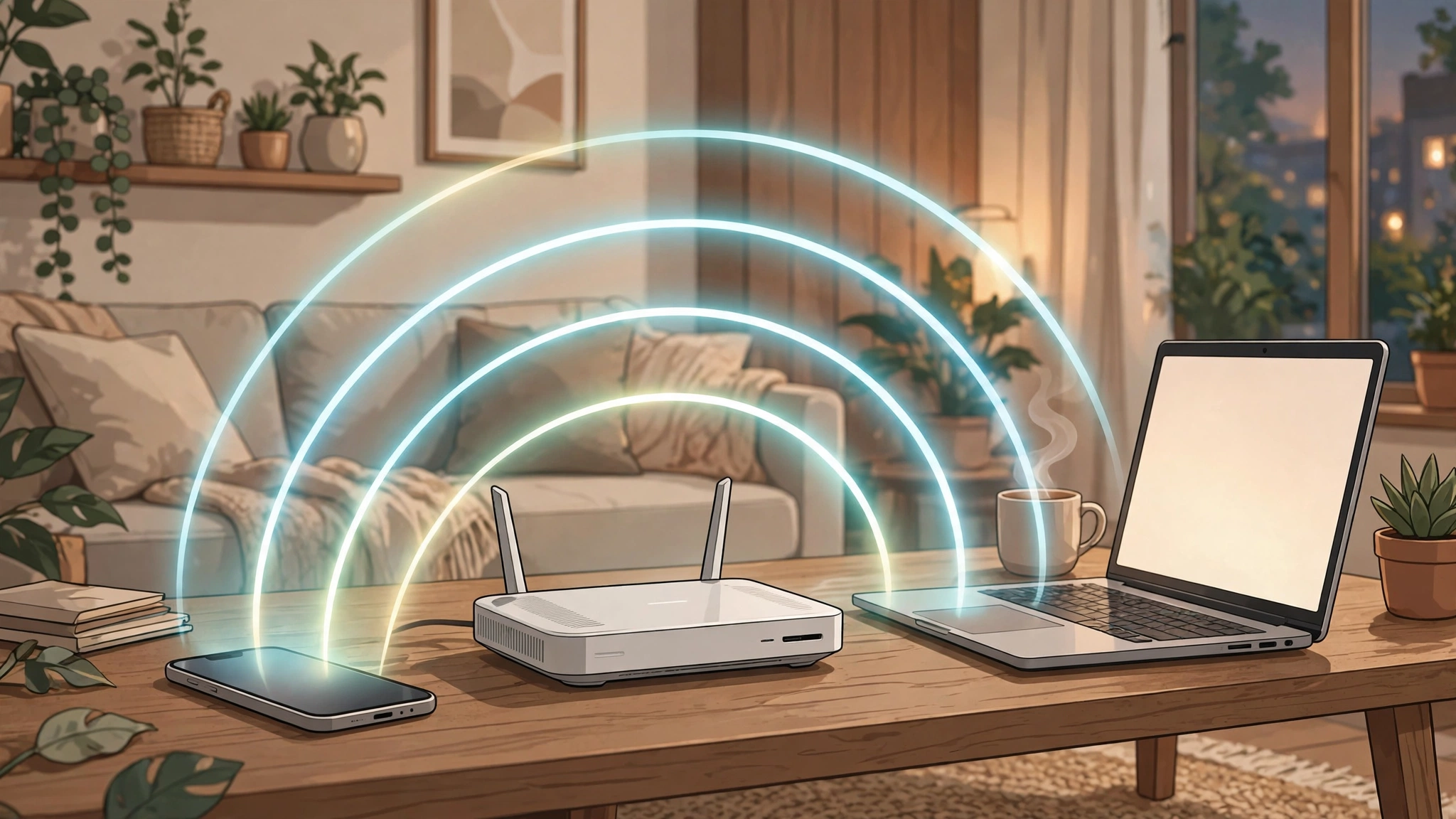
Wi-Fi is radio. The same kind of invisible waves that carry music to a car radio carry your video from the router to the phone, at much higher frequencies and carrying far more information. The router broadcasts these waves in all directions, and devices with Wi-Fi radios listen for them, answer them, and trade data back and forth many times a second.
Because the conversation is wireless, anything that blocks or disturbs radio waves can affect it. Walls absorb signal. Metal reflects it. Other devices using similar frequencies crowd it. Distance weakens it, which is why a phone next to the router streams perfectly while the same phone in a far corner buffers. The waves are real, physical things, and the room they travel through matters as much as the speed you pay for.
It also means Wi-Fi is local. The radio conversation reaches roughly across a home, not across a town. Step too far from the router and the conversation fades, even though the internet itself is fine. The router is the centre of a small wireless world, and its range is the edge of that world.
The router is the meeting point
Every Wi-Fi network has a centre: the router. The router has two jobs. Facing outward, it connects to the internet through your broadband line, usually a cable coming into the house. Facing inward, it runs the wireless network your devices join. Data from the internet arrives at the router, which sends it onward over radio waves to the right device; data from your device travels the reverse path, over the air to the router, then out to the internet.
When you connect a new device, Virgin Media describes a short handshake. The device scans for nearby networks and shows their names, called SSIDs. You pick yours and enter the password. The router checks the password, and if it matches, it gives the device an address on the local network — an IP address — and the device can then send and receive data wirelessly. That address is how the router knows which device asked for which video, so two phones streaming at once each get their own stream.
The password is not decoration. It keeps neighbours and strangers off your network, and it encrypts the wireless conversation so it cannot easily be read by someone nearby. A network without a password is an open door, and anything sent over it can be overheard.
Two bands: 2.4 GHz and 5 GHz
Most home routers offer two frequency bands, and their names appear when you scan for networks: 2.4 GHz and 5 GHz. They are two different radio channels for the same network, and each has a personality. Virgin Media explains the trade-off plainly: 2.4 GHz travels further and passes through walls better, while 5 GHz is faster over shorter distances.
The 2.4 GHz band is the long-distance walker. Its waves are longer, so they push through walls and floors and reach the far bedroom or the garden. But the band is crowded — older devices, neighbours’ routers, baby monitors, cordless phones, and even microwave ovens share nearby frequencies — and crowding means interference and slower speeds. It is the reliable choice for a device far away, or for simple devices like smart plugs that need little speed.
The 5 GHz band is the sprinter. Its waves are shorter and carry data faster, with less crowding, so video calls and streaming feel smoother near the router. But short waves fade faster and struggle with walls, so the signal may vanish two rooms away. Many modern routers offer both bands under one network name and steer each device to the band that suits it best. If your router shows two names, try 5 GHz near the router and 2.4 GHz at a distance, and let experience decide.
Why the signal struggles sometimes
Five things decide how good your Wi-Fi feels, and only one of them is the speed you pay for. Distance is the first: the further from the router, the weaker the signal. Walls and floors are the second: thick walls, metal, and concrete eat signal, and a router hidden in a cupboard or behind a television performs worse than one sitting in the open.
Interference is the third. Microwaves, cordless phones, and baby monitors can disturb the 2.4 GHz band, and a block of flats full of routers means dozens of networks competing for the same air. The number of connected devices is the fourth: every phone, tablet, television, and smart speaker shares the router’s attention, and a house full of streaming devices will feel slower than one quiet laptop. Broadband speed is the fifth: Wi-Fi cannot deliver more than the internet line brings into the house, so a slow line caps everything, however strong the signal.
When Wi-Fi feels slow, check these in order: how far is the device from the router, what sits between them, how many devices are streaming, and whether the broadband itself is slow. Moving the router to a central, open, raised spot — not on the floor, not behind furniture — is the cheapest improvement most homes can make, and it costs nothing.
Wi-Fi security in plain words
A wireless network broadcasts into the space around it, so security matters in a way a cable never needed. Modern routers protect the conversation with encryption standards called WPA2 and WPA3. Virgin Media names both as the current security standards, with WPA3 the newer and stronger of the two. When a device joins with the right password, the router and the device agree on encryption keys, and the data travelling over the air is scrambled to anyone without them.
The practical rules are short. Use a strong Wi-Fi password, different from the one you use for email. Keep the router’s software updated, because updates fix security holes. Change the router’s admin password from its factory default, since defaults are public knowledge. And if your router offers a guest network, use it for visitors, so guests get internet without getting access to your own devices.
Public Wi-Fi — in cafes, airports, and hotels — is a different story. Those networks are shared with strangers, and their security varies wildly. Avoid banking and sensitive logins on public networks, and treat anything sent over them as potentially visible. Home Wi-Fi, properly password-protected and updated, is a far safer place for private business.
Wi-Fi and the internet are not the same thing
This is the most useful distinction in the whole subject. Wi-Fi is the wireless link inside your home. The internet is the global network beyond the router. When a video buffers, the fault may be in either half: the Wi-Fi link may be weak, or the broadband line may be slow, or the video service itself may be struggling.
A quick test separates them. Stand next to the router and try the video again. If it plays smoothly there but not in the far room, the Wi-Fi link is the problem, and moving the router or switching bands may fix it. If it buffers even beside the router, the broadband line or the service is more likely at fault. Knowing which half is broken stops you paying for a faster broadband package when the real problem is a router locked in a cupboard.
The same split explains a common confusion: a phone can show full Wi-Fi bars and still have no internet. Full bars mean a strong radio link to the router. If the router’s broadband line is down, that strong link leads nowhere, like a perfect road to a closed bridge. The bars describe the air, not the internet.
What the future holds for Wi-Fi
Wi-Fi keeps getting faster and smarter. Newer standards add wider channels, better handling of many devices at once, and smarter band steering, so a house full of gadgets shares the air more fairly. The ideas stay the same, though: radio waves, a router at the centre, bands with trade-offs, and a password keeping the conversation private.
The next time a video starts instantly on a phone with no wire in sight, the picture is simple. The phone is whispering in radio waves to a small box, the box is answering, and a cable behind the box carries the conversation to the world. No magic. Just waves, well organised, travelling through the room you are sitting in.
When to ask for help
Some Wi-Fi problems are not yours to fix. If the broadband line itself is down — no internet on any device, even wired directly to the router — the fault belongs to the internet provider, and a call to them is the next step. If the router is old, runs hot, restarts itself, or cannot hold a connection in a small home, it may be failing, and a replacement from the provider or a new router may be the honest fix. If one device alone cannot connect while every other device works, the fault is in that device, and its Wi-Fi settings or software need attention. Knowing which of the three — line, router, or device — is at fault saves hours of restarting the wrong thing, and the test is simple: try another device, try a cable, and try standing beside the router. The answer will point to the fix.
Frequently Asked Questions
How does Wi-Fi work in simple words?
Wi-Fi uses radio waves to carry data between your router and your devices. Your phone or laptop talks to the router over those waves, and the router passes the data on to the internet through your broadband line. Wi-Fi is the wireless bridge inside your home, not the internet itself, which is why a strong Wi-Fi signal does not always mean the internet is working.
What is the difference between 2.4 GHz and 5 GHz Wi-Fi?
The 2.4 GHz band travels further and passes through walls better, but it is more crowded and slower, while the 5 GHz band is faster over shorter distances with less interference but fades sooner through walls. Use 5 GHz near the router for streaming and video calls, and 2.4 GHz for devices far away or simple smart-home gadgets that need little speed.
Why is my Wi-Fi slow in one room?
Distance, walls, interference, the number of connected devices, and your broadband speed all affect Wi-Fi, and a far room usually suffers from the first two. Microwaves, cordless phones, and neighbours’ routers can disturb the 2.4 GHz band, and many devices streaming at once share the router’s attention. Moving the router to a central, open, raised spot is the cheapest fix, and standing beside the router helps tell a Wi-Fi problem from a broadband problem.
Is Wi-Fi safe and what are WPA2 and WPA3?
WPA2 and WPA3 are the security standards that encrypt the wireless conversation between your devices and your router, with WPA3 the newer and stronger one. A strong, unique Wi-Fi password, updated router software, and a changed admin password keep the network private. Public Wi-Fi is less safe because it is shared with strangers, so avoid banking and sensitive logins on networks you do not trust.
Can I have Wi-Fi without the internet?
Yes, in a narrow sense: Wi-Fi is only the wireless link to your router, so devices can still talk to the router and to each other on the local network even when the broadband line is down. But without the broadband connection, that link leads nowhere, so websites and streaming will not load. Full Wi-Fi bars with no internet usually means the radio link is strong while the router’s connection to the internet is the part that has failed.
Sources
- Virgin Media — What Is Wi-Fi? (fetched 2026-10-28)